

Adding an image to a web page takes one line of HTML. You can do the same in WordPress by using the text tab of the editor. Below we show the tag, the float style, and the habits that keep pages fast.
The one line that adds a picture
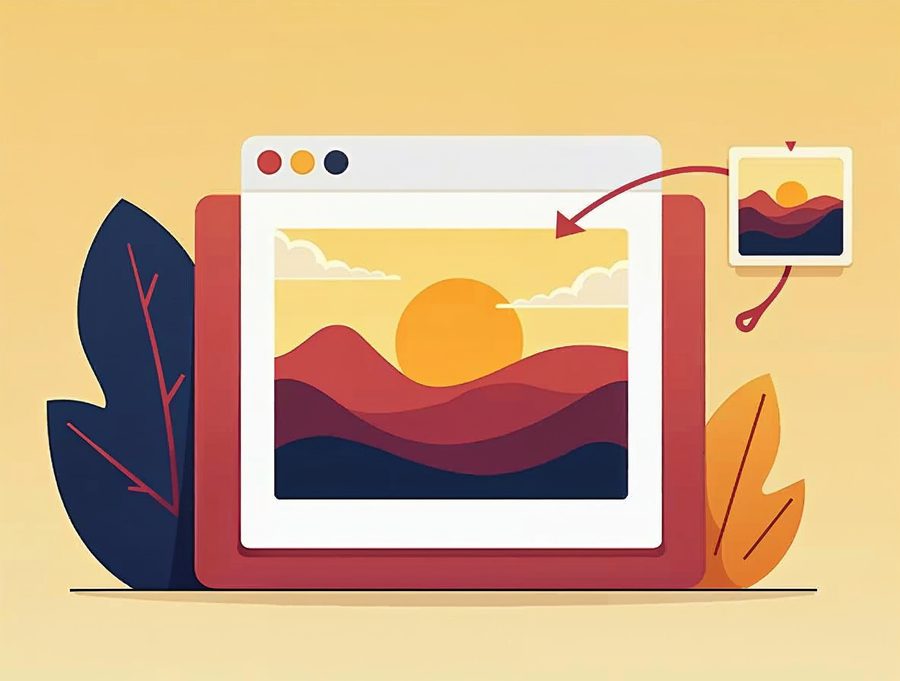
An image goes on a page with the img tag. It needs two parts to work well. The src part is the address of your image file. The alt part is a short description of the picture.
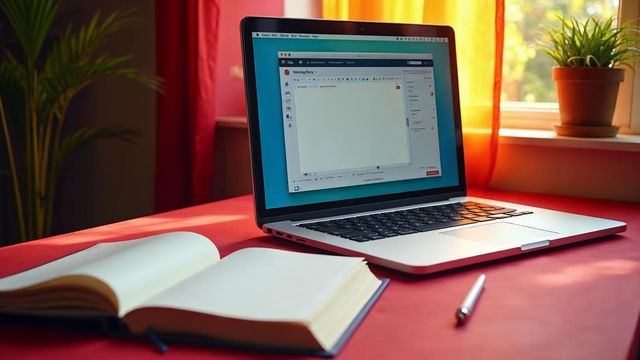
In WordPress, switch from the visual tab to the text tab of the editor. Then paste the tag where you want the picture to appear. Switch back to the visual tab to see the result.
Basic image tag
Replace the address with the real path to your own image. The width and height are in pixels.
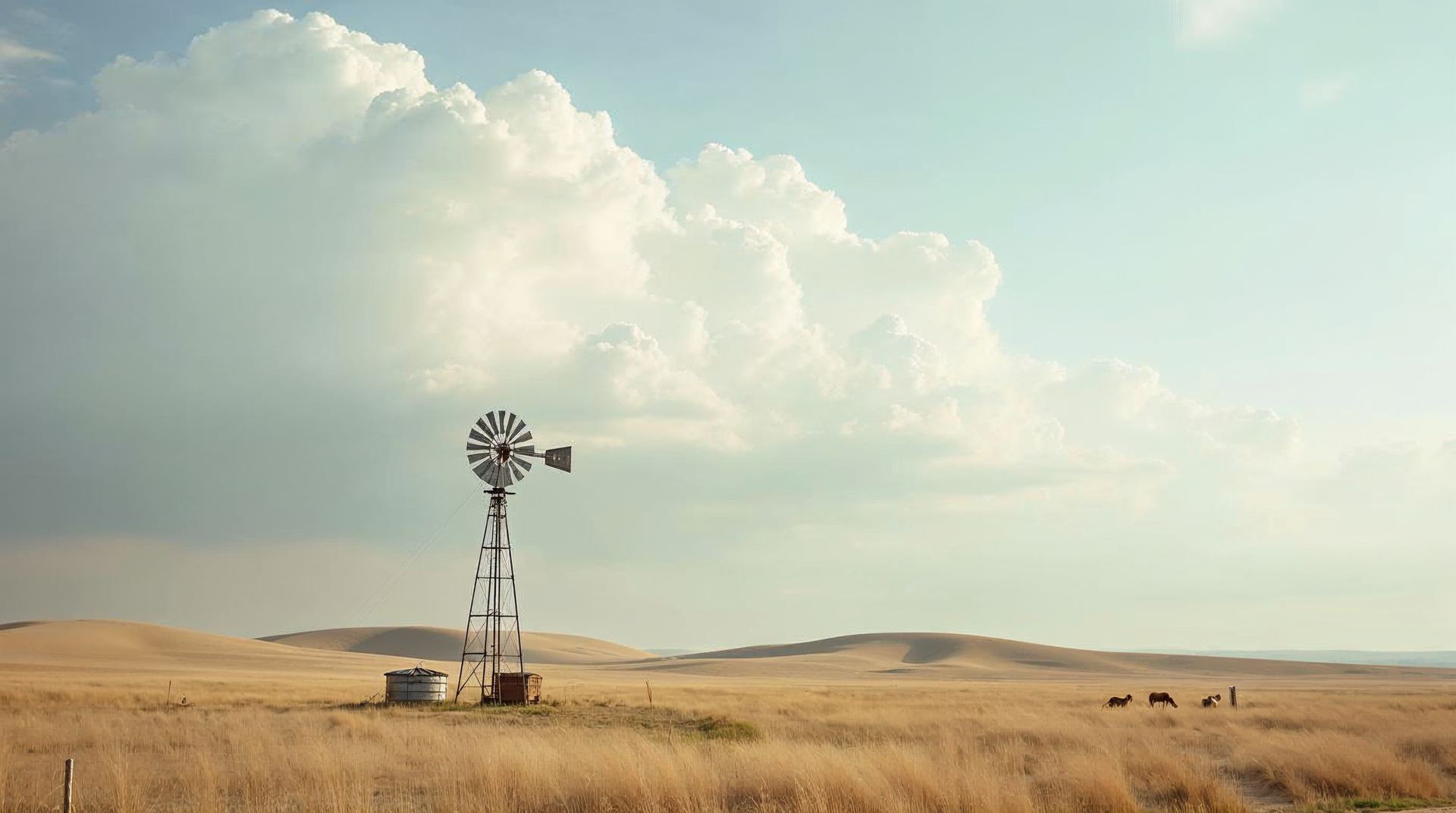
<img src="/images/omaha-skyline.jpg" alt="Omaha skyline at sunset" width="600" height="400">We add a width and a height to every image tag. The browser then saves the right amount of room, so the page does not jump while it loads.
Put the image on the left or right
A float style moves the picture to one side and lets the text wrap around it.
<img src="/images/omaha-skyline.jpg" alt="Omaha skyline at sunset" width="300" height="200" style="float:left; margin:0 16px 8px 0;">Text now wraps around the right side of the picture. Use float:right to place the picture on the right side instead. The margin keeps the text from touching the edge of the picture.
Add an image in WordPress step by step
If you would rather not touch code, the WordPress editor does the work for you.
Open the page
Go to Pages > All Pages, or Posts > All Posts, and click the title you want to edit.
Place the cursor
Click in the text where the picture should appear. Start a new paragraph first if you like.
Add the image block
Click the plus button, choose Image, then Media Library. You can also upload a new file from your computer.
Fill in the alt text
Type a short description of what the picture shows. Do not use the file name.
Update and check
Click Update, open the page, and look at it on your phone too.
Alt text, size and file type
Always fill in the alt text. It helps people with visual disabilities, because a screen reader reads it aloud. It also helps search engines understand what your picture is about.
Write a short, plain description, such as "Omaha skyline at sunset". Describe what the picture shows, not just its file name. Good alt text also appears when an image cannot load.
Keep each image close to the same size as it shows on your page. A huge photo that the browser shrinks makes the page load slowly. Resize the file before you upload it.
On each Omaha web design project we use the JPG format for photos and the PNG format for logos. We also check the page on a phone after we add the image.
If the image does not show
The most common cause is a wrong path in the src part. Check the spelling, the capital letters and the file ending. A file called Photo.JPG is not the same as photo.jpg on most servers.
If you would rather not edit code, we can do it for you. Our team adds and sizes images on every site we build. A new website with up to 5 pages and a contact page costs $300 and takes 3 to 5 days. Call us in Omaha at 402-813-4034 and we will help.
Common questions
Do I need to know HTML to add an image?
No. The WordPress editor has an Image block that writes the tag for you. A little HTML helps when you want to fix a small problem.
What is the alt text for?
It describes the picture for screen readers and search engines. It also shows when the image cannot load.

AboutRod and Tami Atwood
Rod and Tami Atwood and other Websnoogie contributors write the Websnoogie blog. Rod has built websites since 2004 and founded Websnoogie, LLC in Omaha in 2012. Tami is co-owner, content editor and billing expert. Call us at 402-813-4034 or write to staff@websnoogie.com.