What Is the Fastest Way for a Novice to Build a WordPress Website?
WordPress is the fastest way for a beginner to build a website. It has a friendly dashboard and many free guides. Get a domain and hosting, use the one-click installer…
Read more
Limited-time savings
Great news for Omaha and Nebraska small businesses. Because we have cut our labor costs, every new website with up to 5 pages plus a contact page is now just $300, one time. You get a custom design built by real people you can call, not a template factory, and most sites are ready in 3 to 5 days. Your site is mobile-friendly, has a working contact form and search-ready page titles and descriptions, and comes with a free SSL certificate. Hosting starts at $129 a year for a non-CMS site or $149 a year for WordPress, with daily backups included. Our family team has been building websites in Omaha for over 20 years. Choose what you need in the shopping cart below, call us at 402-813-4034, or send a message with the contact form and we will get started right away.

Step-by-step WordPress help for beginners: posts, pages, images, media, links and settings, in plain words. Every tutorial works on our WordPress hosting.

WordPress is the fastest way for a beginner to build a website. It has a friendly dashboard and many free guides. Get a domain and hosting, use the one-click installer…
Read moreA reusable block is a block you save once and use anywhere on your website. You create it from the block options menu, give it a name, and insert it from the Reusable…
Read moreWe made WordPress video tutorials to help our clients run their own sites. Each one covers a single task, step by step. You can watch them in any order, on your own time.
Read moreTo embed a video in WordPress, copy the video link from YouTube or Vimeo and paste it on a line by itself in your post. WordPress turns the link into a player. The video…
Read moreThe WordPress media library holds every picture and file on your website. Open it from Media > Library in the left menu. From there you can view, sort, edit and delete…
Read moreTo use the image editor in WordPress, go to Media > Library, click a picture, then click Edit Image. You can crop, rotate, flip and scale it. Click Save when you finish.
Read moreTo create a list in WordPress, click the bullet list or numbered list button on the editor toolbar and start typing. Press Enter after each item. Click the button again…
Read moreTo add links in WordPress, highlight the words you want to link, click the link icon on the toolbar, and paste the web address. Press Enter, then click Update to save.…
Read moreTo set a featured image in WordPress, open your post and find the Featured Image box on the right. Click Set featured image, choose a picture and save. The featured…
Read moreA post excerpt is a short summary of a post. You turn it on at Settings > Reading and write it in the Excerpt box on each post. Visitors then scan your list of posts and…
Read moreTo edit text in WordPress, open Pages or Posts, click the title, then click the words you want to change. Type your edit and press Update. If you have used Microsoft…
Read moreTo edit an image in WordPress, click the picture in your page or post. A toolbar appears above it. Use it to resize, align, add a link, crop or rotate the image, then…
Read moreTo delete an image in WordPress, first remove it from the post, then go to Media > Library, click the image and choose Delete permanently. Removing it from a post alone…
Read moreThe WordPress dashboard is the control center of your website. You see it first when you log in. The menu on the left leads to your posts, pages, images, plugins and…
Read moreCategories group your posts by topic, so visitors can find what they want. You create them under Posts > Categories in your dashboard. Then you tick one or more boxes on…
Read moreTo manage comments in WordPress, click Comments on your dashboard. You can approve, reply to, edit, mark as spam or trash each one. To change the rules for new comments…
Read moreYou change your password in WordPress from Users > Profile in the admin area. Type a new password, confirm it, and click Update Profile. Your site stays online the whole…
Read moreThe WordPress admin bar is the dark gray strip at the top of your screen when you are logged in. It gives quick links to your dashboard, new posts, comments, your…
Read moreTo add a new post in WordPress, click Posts in the dashboard, then Add New. Type a title, write your text, and click Publish. You can save a draft first if you are not…
Read moreYou add a paragraph in WordPress by typing your text and pressing the Enter key. You can also highlight text and pick Paragraph from the style drop-down in the editor…
Read moreTo upload media in WordPress, click Media > Add New in your dashboard. Drag your files into the upload area, or click Select Files. When the progress bar finishes, your…
Read moreTo add a new page, go to Pages > Add New in your dashboard. Type a title, add your text, then click Publish. It takes about two minutes, and you can save a draft first…
Read moreTo add an image gallery in WordPress, open your page or post, click Add Media and choose Create gallery. Pick your images, set the columns and link options, and click…
Read moreTo add an image from a URL, click Add Media in the editor, then choose Insert from URL. Paste the image address and click Insert into post. The picture stays on the…
Read moreTo upload an image to WordPress, drag the picture from your computer into the editor. You can also go to Media > Add New and pick the file. WordPress saves it in your…
Read moreOur WordPress tutorial series shows you how to use, maintain and design with WordPress, one task at a time. Each lesson is short and has numbered steps. Start with the…
Read moreTo add images to a WordPress post, place your cursor where the picture should go and click Add Media or the image block. Pick a picture from your media library or upload…
Read moreYou add a heading in WordPress by selecting your text and choosing a heading style from the format drop-down in the editor. WordPress offers six levels, from Heading 1…
Read moreWe no longer use QuickInstall. We use our own application installer, which has over 100 apps, including WordPress. This guide explains how QuickInstall worked and what…
Read moreTo embed a YouTube video, copy the embed code from YouTube and paste it into your post or page. Then click Publish. You can also paste the video web address on its own…
Read moreYou build a page in WordPress from Pages > Add New. Type a title, add your text and pictures, then click Publish. The editor works much like a word processor, so you do…
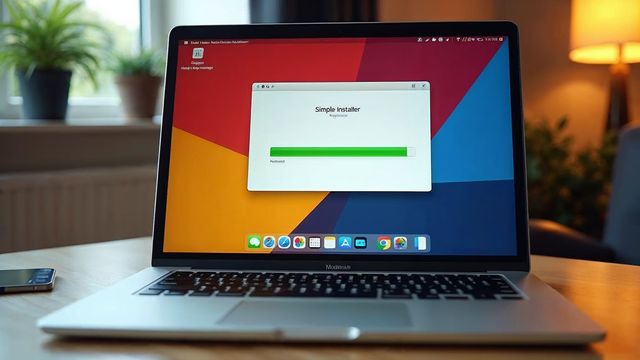
Read moreA fresh WordPress install takes about 2 minutes, even if you know nothing about web design or web hosting. Our installer runs in about 30 seconds. You only need a domain…
Read more
Rod, Tami, and their team have built websites, content, and provided SEO services (internet marketing) for over 20 years. You call us, you talk to us. Most new websites are ready in 3 to 5 days, and our hosting runs at 99.999% uptime.
Prefer to talk? Call 402-813-4034 or email staff@websnoogie.com. We are open every day, 7 am to 10 pm.