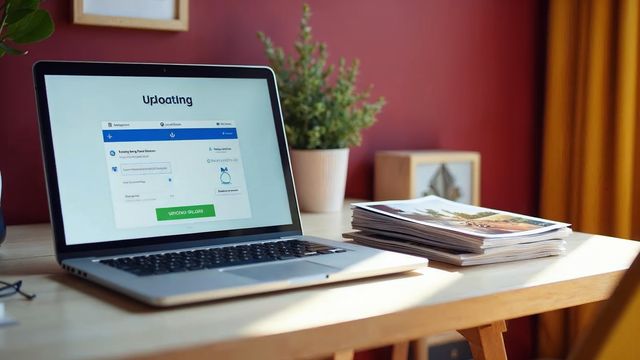

To add an image from a URL, click Add Media in the editor, then choose Insert from URL. Paste the image address and click Insert into post. The picture stays on the other site, so you do not control it.
When this method makes sense
Sometimes you want a picture in your post but do not want to download and upload it again. You can use the image URL to show it directly on your WordPress website.
This keeps your media library small. But it has a downside, which we explain below. Use this method only for images you have the right to use.
Insert an image from a URL
You need the web address of the image, and a post or page open in the editor.
Copy the image address
In your browser, right-click the image. Click Copy Image Address. Your browser may say Copy Image Location or Copy URL.
Open your post or page
Open the editor of the post or page where the picture should go.
Click Add Media
Click Add Media above the editor. A window opens.
Choose Insert from URL
Look at the menu on the left side of the window. Click Insert from URL.
Paste the address
Paste the web address into the box. A thumbnail of the picture appears.
Add alt text and alignment
Type a short alt text, which describes the picture for visitors who cannot see it. Pick an alignment.
Click Insert into post
Then press Preview or Publish. Both buttons are on the right side of the screen.
The risk of linking to another site
The image is not on your server. You have no control over it.
If the owner changes or deletes the image, your website shows the change too. You may end up with a broken picture.
The other site also pays the cost of sending the picture to your visitors. Some owners block this, and some do not like it.

A safer choice for most pictures
For pictures you own, upload them to your own library instead. See our guide on how to upload media in WordPress in the WordPress tutorials.
Your own copy loads fast and never disappears. It also lets you add alt text once and reuse it.
Check the rights before you use any picture. A picture on the web is not free to use just because you can see it.
Good manners and good sense with other sites' pictures
Ask the owner if you are not sure you may use a picture. Many owners say yes if you give them credit.
Keep a note of where each picture came from. If the owner later asks you to remove it, you can find it fast.
Open your page now and then to see that every picture still shows. A broken picture makes a site look neglected.
If a linked picture matters to your page, save a copy with permission and upload it instead.
If the picture does not show
Check that the address ends in a picture type such as .jpg or .png. A web page address will not work.
Make sure the address starts with https. Some browsers block pictures that load from an unsafe address.
Need help with your WordPress website? Call Websnoogie in Omaha at 402-813-4034 any day from 7 am to 10 pm, or contact us.
Common questions
Is it better to upload an image or link to it?
Upload it when you own it. Linking is quick, but the picture can change or vanish if the other site changes it.

AboutRod and Tami Atwood
Rod and Tami Atwood and other Websnoogie contributors write the Websnoogie blog. Rod has built websites since 2004 and founded Websnoogie, LLC in Omaha in 2012. Tami is co-owner, content editor and billing expert. Call us at 402-813-4034 or write to staff@websnoogie.com.