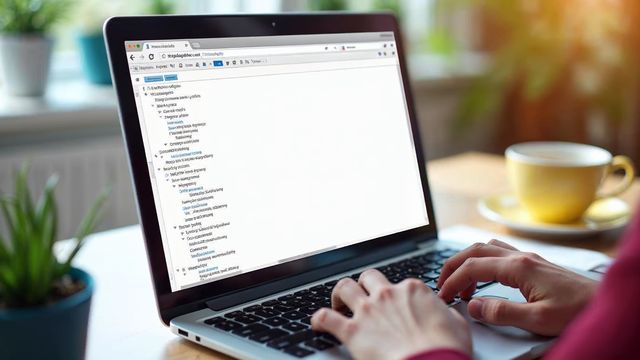
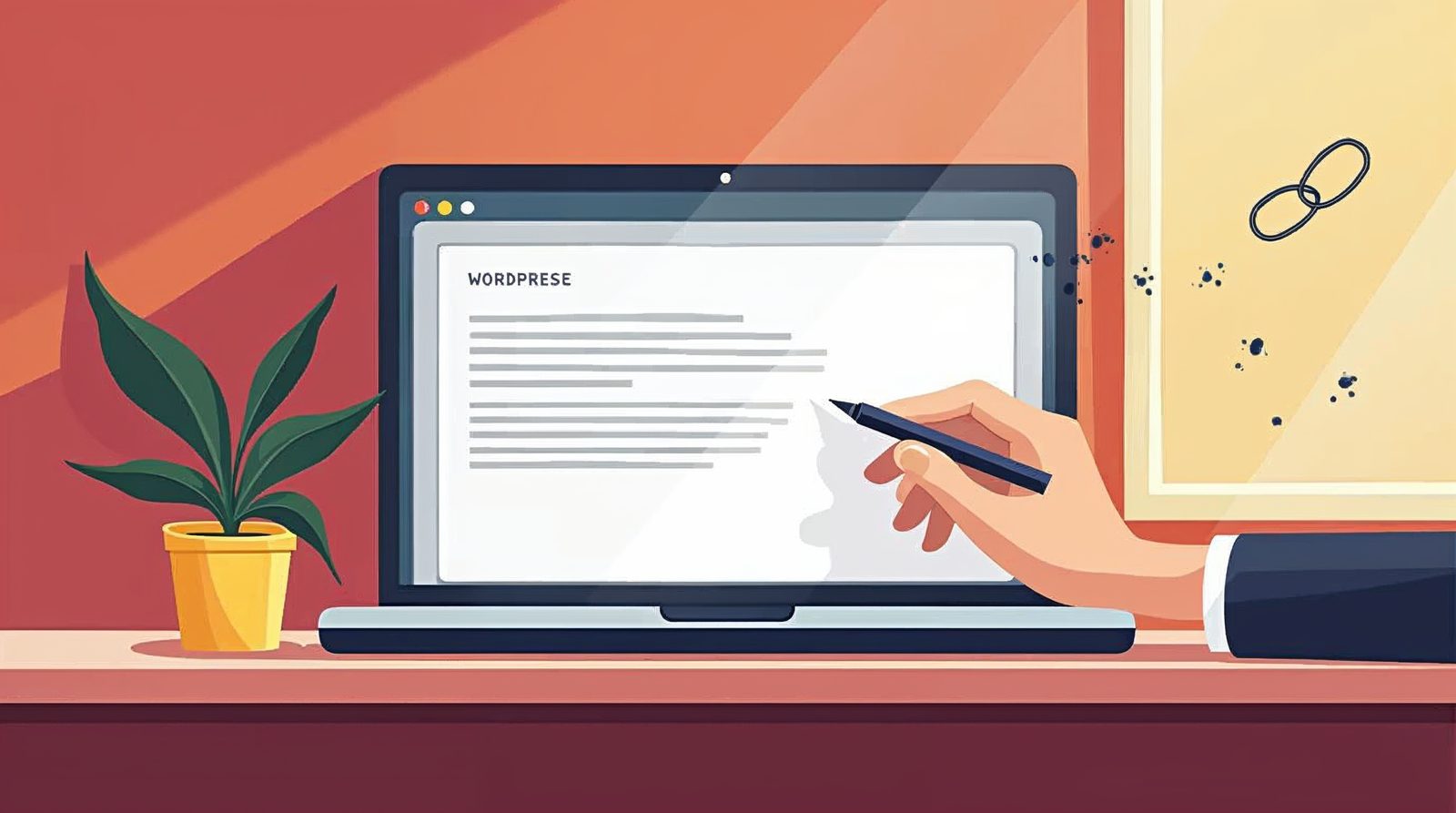
To add links in WordPress, highlight the words you want to link, click the link icon on the toolbar, and paste the web address. Press Enter, then click Update to save. It takes about a minute, and you can do it on any page or post.
What a link does for your website
A link, also called a hyperlink, takes a visitor to another page, post or website. Links make your site easier to use. They also help search engines follow your pages from one to the next.
A link can point to a page on your own site, to a post, or to any web address. You can also link to a file, such as a PDF price list.
Add a link step by step
These steps work in the WordPress editor for both pages and posts. In the classic editor, the link icon sits on the toolbar above your text.
Open the page or post
In the dashboard, go to Pages > All Pages or Posts > All Posts. Click the title you want to edit.
Highlight the text
Drag your mouse across the words you want to turn into a link. Short, clear words work best.
Click the link icon
Click the chain-link icon on the toolbar. You can also press Ctrl+K on a PC or Cmd+K on a Mac.
Enter the web address
Paste the full address, starting with https://. For a page on your own site, type a word in the box and pick the page from the list.
Choose how it opens
Turn on the option to open the link in a new tab. Use it for other websites, so your own page stays open.
Apply the link
Press Enter or click the Add Link button. The linked words now show underlined or in a new color.
Preview and update
Click Preview to test the link. Then click Update to publish your change.
Link to your own pages
Links between your own pages are called internal links. When you type a word in the link box, WordPress lists matching pages and posts. Click one, and the web address fills in for you.
This is faster than typing, and it avoids typos. If you later change a page address, an internal link that you picked from the list is easier to find and fix.
Remove or change a link
To change a link, click the linked words. A small box appears with the address. Click the pencil icon, edit the address, and press Enter.
To remove a link, click the linked words and click the unlink icon. The text stays, and only the link goes away. Click Update when you finish.
Common mistakes with links
The most common mistake is linking the words "click here". Visitors and search engines learn nothing from those words. Link the words that describe the page, such as "our web design prices".
Another mistake is a broken link. This happens when you type an address by hand and miss a letter. Always click each new link after you update the page.
Also, do not add too many links. Link to the pages that answer the question a visitor is asking. A few good links beat a page full of them.
When a link does not work
If a link shows a page not found message, check the address for typos. Make sure it begins with https://.
If the link does not show after you update, clear your browser cache and reload. If it still fails, a caching plugin may hold the old page. We can look at that for you. Call Websnoogie in Omaha at 402-813-4034 any day from 7 am to 10 pm.
Common questions
Should I open links in a new tab?
Yes for links to other websites, so visitors keep your page open. For links to your own pages, the same tab is fine.
Can I link an image instead of text?
Yes. Click the image, click the link icon on its toolbar, and paste the address.

AboutRod and Tami Atwood
Rod and Tami Atwood and other Websnoogie contributors write the Websnoogie blog. Rod has built websites since 2004 and founded Websnoogie, LLC in Omaha in 2012. Tami is co-owner, content editor and billing expert. Call us at 402-813-4034 or write to staff@websnoogie.com.