

To delete an image in WordPress, first remove it from the post, then go to Media > Library, click the image and choose Delete permanently. Removing it from a post alone does not delete the file.
Remove versus delete
Knowing how to remove an image is a basic skill for anyone who runs a WordPress website. There are two different jobs here.
Removing an image takes it off one post or page. The file stays in your media library. Deleting an image erases the file from your site.
Most people only need to remove. Delete only when you are sure you no longer need the file.
Steps to delete an image
Do step one and two to take a picture off a post. Do the rest to delete the file for good.
Click the image in the editor
Open the post or page. Click the picture in the visual editor and a small menu appears over it.
Remove it from the post
Click the x in that menu. The picture no longer shows on the post or page, but it is still in your media library.
Open the media library
In the dashboard on the left, hover over Media and click Library. The library screen shows every file you uploaded.
Select the image
Click the image you want to delete. A details window opens with the file name and size.
Delete permanently
On the right-hand side, click Delete permanently and confirm. The file is gone from your site.
Check before you delete
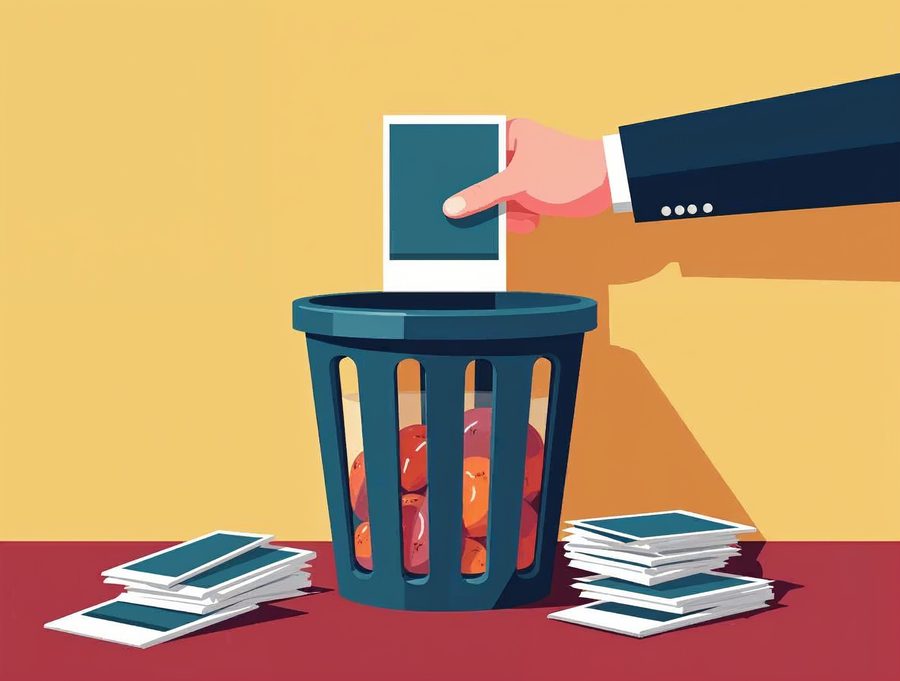
Deleting an image this way cannot be undone. WordPress has no recycle bin for media by default.
Check that no other page uses the picture first. A deleted file leaves a broken picture icon on any page that still shows it.
A smaller library also keeps your site easier to manage. Old, unused pictures can pile up over time.
Why keep your media library tidy
Every picture you upload stays in the library until you delete it. Over a year, a busy site can collect hundreds of files.
Old files take up space on your hosting account. They also make it harder to find the picture you want when you add a new post.
A good habit is to review the library every few months. Sort by date, look at the oldest files, and delete the ones that no longer belong on your site.
Before you delete anything, make sure you keep the original picture on your own computer or phone.
Take your time. A slow, careful check now saves you a lot of repair work later on your site.
Common problems and fixes
If you cannot find the image in the library, switch the view to list view and search by file name. The list view also shows which post the file is attached to.
If you deleted a picture by mistake, upload the original again. Keep a copy of your pictures on your own computer so you can always do this.
If you see a broken picture after a delete, edit that page, click the empty spot and add a new image.
If you want a hand with your WordPress site, call Websnoogie in Omaha at 402-813-4034 or use our contact form.

AboutRod and Tami Atwood
Rod and Tami Atwood and other Websnoogie contributors write the Websnoogie blog. Rod has built websites since 2004 and founded Websnoogie, LLC in Omaha in 2012. Tami is co-owner, content editor and billing expert. Call us at 402-813-4034 or write to staff@websnoogie.com.