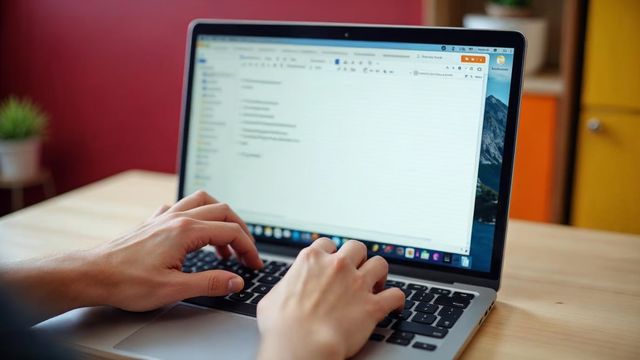

To edit an image in WordPress, click the picture in your page or post. A toolbar appears above it. Use it to resize, align, add a link, crop or rotate the image, then click Update to save.
Prepare the image first
We suggest you pick and prepare your picture before you upload it. Use Microsoft Paint or any photo editor for big changes. Fix the size and the shape there.
WordPress is best for small fixes after the picture is on the page. You can change the size, the position, the caption and the alt text.
Edit an image in a page or post
These steps work for both pages and posts.
Open the page or post
Go to Pages > All Pages or Posts > All Posts. Click the title you want to change.
Click the image
Click once on the picture. A toolbar appears above it, and small handles show on its corners.
Align the image
Use the toolbar to align the picture left, center or right. Left or right lets the text wrap beside it.
Resize the image
Drag a corner handle to scale the picture. You can also set an exact size in the settings panel on the right.
Add alt text and a caption
In the settings panel, type a short description in the Alternative Text box. Add a caption if you want words under the picture.
Crop or rotate
Click the crop icon on the toolbar. You can crop, rotate or flip the picture. Click Apply when you like the result.
Update the page
Click Preview to check your work. Then click Update to publish it.
Write good alt text
Alt text is a short description of the picture. Visitors who use screen readers hear it. Search engines also use it to understand the image.
Describe what you see in plain words, such as "woman at the front desk of a dental office". Add alt text to every image. Skip it only for pictures that are pure decoration.
Use the media library editor
For more control, go to Media > Library and click the image. Click Edit Image. This screen lets you crop, rotate, flip and scale the file itself.
A change made here applies to the file in your library. The picture changes wherever you used it, so be careful. If you only want a change on one page, edit it on that page instead.
Common mistakes
The biggest mistake is uploading a huge photo straight from a phone. It can be several megabytes. A large file slows your page, and visitors on phones leave a slow page.
Resize the image before you upload it. Give the file a short name that describes it, such as front-desk.jpg, not a camera number.
Another mistake is stretching a small picture to fill a wide space. It turns blurry. Pick a larger original instead.
If the edit does not show
If your change does not appear after you update, clear your browser cache and reload the page. A caching plugin can also hold the old picture for a short time.
If you still need help, or want us to build a new website with clean images, call Websnoogie in Omaha at 402-813-4034.
Common questions
Does editing an image in WordPress change my original file?
Cropping in the media library saves a changed copy and lets you restore the original. A resize on the page only changes how it displays.

AboutRod and Tami Atwood
Rod and Tami Atwood and other Websnoogie contributors write the Websnoogie blog. Rod has built websites since 2004 and founded Websnoogie, LLC in Omaha in 2012. Tami is co-owner, content editor and billing expert. Call us at 402-813-4034 or write to staff@websnoogie.com.