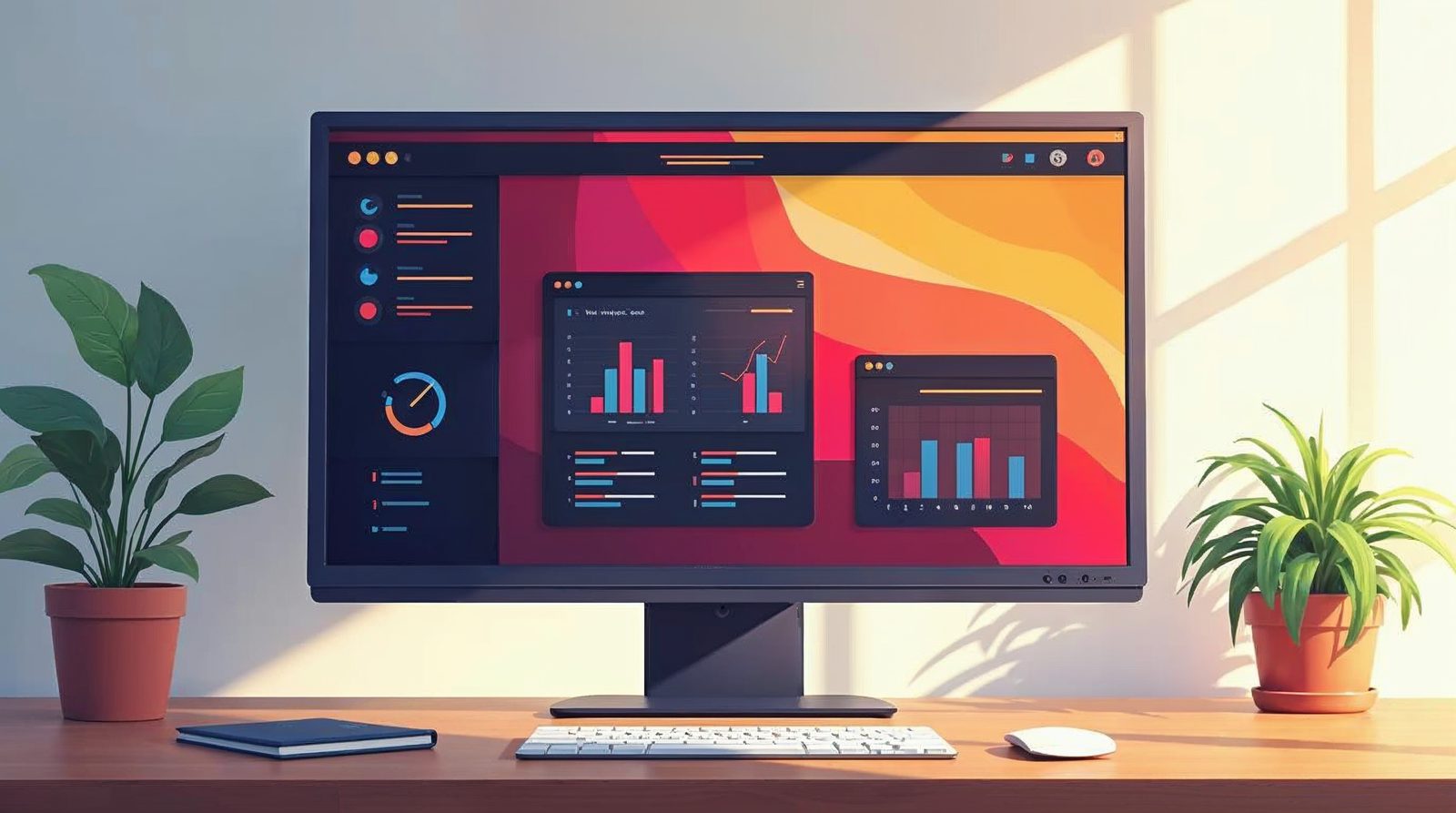
The WordPress dashboard is the control center of your website. You see it first when you log in. The menu on the left leads to your posts, pages, images, plugins and settings.
What the dashboard shows
The dashboard shows facts about your site. You may see site health, recent activity and notices about updates. You also see boxes called widgets.
Dashboard widgets are not the same as the widgets in your theme. They only show information to you, and visitors never see them.
Set up your dashboard view
You can change what the dashboard shows. These steps take a minute.
Log in
Go to the login page of your site, usually yourdomain.com/wp-admin. Enter your user name and password.
Move a widget
Drag the title bar of a widget to a new spot. Drop it where you want it.
Minimize a widget
Click the small down arrow in the upper right corner of the widget. This hides its body, and you can open it again.
Open Screen Options
Click the Screen Options tab at the top right. Tick the widgets you want to see and clear the rest.
Open Help
Click the Help tab next to it. It links to documentation for the screen you are on.
The left menu explained
The menu on the left leads to every area of your site. Many items have a sub-menu. Hover over an item to see it, then click a link.
Dashboard shows updates and basic facts. Posts is where you write blog posts and manage categories and tags. Media holds your image library. Pages is where you edit the pages of your site.
Comments lets you approve, delete or mark comments as spam.
The rest of the menu
Appearance manages your theme, widgets and menus. Plugins adds software that extends your site. Use Plugins > Installed Plugins to turn plugins on or off.
Users is where you add people and edit profiles. You can change a password, email address or screen name there. Tools handles importing and exporting content. Settings holds your site name, privacy and permalinks.
The admin bar
The black bar at the very top is the admin bar. It gives quick access to the things you use most, such as adding a new post. It also shows when updates wait for you.
When you view your public site while logged in, the bar still shows. Visitors do not see it.
Tips and common mistakes
Do not delete a plugin or change a setting unless you know what it does. If you are not sure, ask us first.
Keep your user name and password private. Use a long password that you do not use on other sites. Update WordPress and your plugins when the dashboard asks. Updates fix security problems.
If you need help with your site or want a new WordPress website, call Websnoogie in Omaha at 402-813-4034, or use our contact form.
Common questions
How do I get to the WordPress dashboard?
Add /wp-admin to your site address and log in with your user name and password.
Why is a menu item missing from my dashboard?
Your user role may not allow it. An Administrator sees every item, while an Editor or Author sees fewer.

AboutRod and Tami Atwood
Rod and Tami Atwood and other Websnoogie contributors write the Websnoogie blog. Rod has built websites since 2004 and founded Websnoogie, LLC in Omaha in 2012. Tami is co-owner, content editor and billing expert. Call us at 402-813-4034 or write to staff@websnoogie.com.