
To edit text in WordPress, open Pages or Posts, click the title, then click the words you want to change. Type your edit and press Update. If you have used Microsoft Word, most of the buttons will look familiar.
Start in the dashboard
You write pages and posts on your WordPress website in the same text editor. It works the same way for both.
Click Pages or Posts on the left side of the dashboard. A list of your content opens. Click a title to edit it, or hover over it and click Edit below the title.
Edit your text step by step
Follow these steps for any page or post on your site.
Open the page
Go to Pages > All Pages or Posts > All Posts. Click the title of the one you want to change.
Click where you want to type
Click in the white box on the words you want to change. A cursor appears and you can start typing.
Format your words
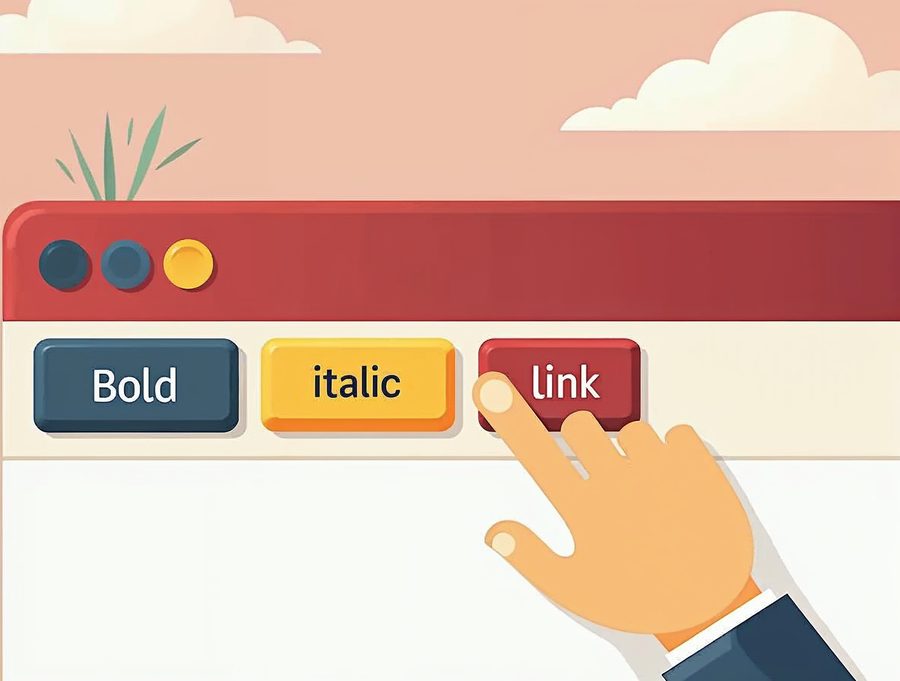
Highlight the text and click the B button to make it bold. The italics button works the same way.
Add a link
Highlight the words, click the link button and paste in the web address. Press Enter to confirm.
Preview your change
Click Preview on the right side of the screen. You will see exactly how the page looks to visitors.
Save with Update
Click Update on a live page. Click Publish on a new one. Your change goes live right away.
The editor buttons
The buttons sit above the white box. Most work like your word processor. Highlight your text, then click the button.
The alignment buttons move text to the left, center or right. We do not use them often, but they are there.
Made a mistake? Press the Ctrl key and the Z key together to undo it. On a Mac, press Command and Z.
Tips that save you trouble
Keep sentences short. Short sentences are easy to read on a phone.
When you paste text from Word, paste it as plain text. Press Ctrl, Shift and V together. This stops odd fonts and colors from coming along.
The editor gives you a rough idea of the page. Always use Preview before you click Update.
You can change the text at any time. Edit the page, change the words and click Update.
Keep your text clear and easy to scan
Break long text into short paragraphs. Two or three sentences per paragraph is plenty. Visitors read on phones, and big blocks of text are hard to follow.
Use headings to split a page into parts. Click the plus button, pick Heading, and type the title of the section. Headings help visitors and search engines see what each part is about.
Read your text out loud before you click Update. If a sentence is hard to say, it is hard to read. Cut it in two.
Check spelling too. Your browser underlines mistakes in red, so right-click a word to fix it.
If your change does not show
First, refresh the page in your browser. Hold the Shift key while you click the refresh button.
If you still see the old text, a cache plugin may be holding the old page. Clear the cache in that plugin, then check again.
If you need help with your WordPress site, call our Omaha team at 402-813-4034, or contact us. We are glad to walk you through it.
Common questions
Why does my edit not appear on the live page?
You may not have clicked Update, or a cache is holding the old page. Click Update, clear your cache and refresh your browser.

AboutRod and Tami Atwood
Rod and Tami Atwood and other Websnoogie contributors write the Websnoogie blog. Rod has built websites since 2004 and founded Websnoogie, LLC in Omaha in 2012. Tami is co-owner, content editor and billing expert. Call us at 402-813-4034 or write to staff@websnoogie.com.