The WordPress admin bar is the dark gray strip at the top of your screen when you are logged in. It gives quick links to your dashboard, new posts, comments, your profile and search. Only logged-in users see it.
What the admin bar is
The admin bar gives you quick links to the main areas of your WordPress website. You can use it on the dashboard and on the live site.
Visitors never see it. It shows only to people who are logged in.
Knowing each item saves you many clicks every day.
The admin bar items, left to right
A typical bar has the items below. Plugins may add more.
WordPress icon
The icon on the far left links to help from wordpress.org, including support and contact forms.
Your site name
On a multisite network this is a link to your sites and their dashboards. On a single site, the drop-down has links for your website, such as the dashboard, themes, widgets and menus.
Customize
This link opens the customizer so you can change how your site looks.
Comments
This opens the comments area, where you can edit, delete and reply to comments.
New
This lets you add a new post, page, media file or user. On a post or page, an Edit Post or Edit Page link appears next to it.
Profile and search
On the far right, hover over your profile for a drop-down with your avatar. You can edit your profile or log out. The search icon finds any page or post.
Your profile and avatar
Hover over your name on the right side of the bar. A drop-down shows your avatar icon.
You change your avatar at Gravatar, which is a free service. WordPress reads the picture from there.
Click Edit Profile to change your name, email or password. Click Log Out when you finish, especially on a shared computer.
Why the admin bar saves time
Without the bar, you must go to the dashboard, find the right menu and then search for your page. With the bar, one click does the same job.
For example, you spot a mistake while reading your Contact page. Click Edit Page in the bar and you land in the editor at once.
The New menu works the same way. Click New, choose Post, and you start writing from any page of your site.
Spend a few minutes hovering over each item. Most of the drop-down menus hold shortcuts you will use often.
Take a minute to try each link once. You will soon know which ones you use most and which you can ignore.
Tips and problems
The fastest way to fix a typo is to view the page on your site and click Edit Page in the bar. You skip the dashboard completely.
If the bar does not show, make sure you are logged in. Then open your profile under Users and check that Show Toolbar when viewing site is ticked.
Some plugins add many items and make the bar crowded. You can turn off the ones you do not use in the plugin settings.
If you want a hand with your WordPress site, call Websnoogie in Omaha at 402-813-4034 or use our contact form.
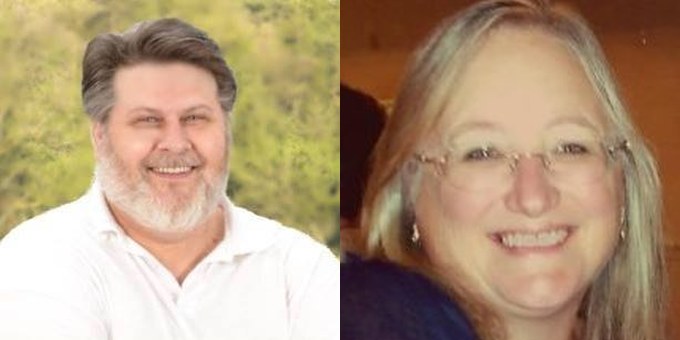
AboutRod and Tami Atwood
Rod and Tami Atwood and other Websnoogie contributors write the Websnoogie blog. Rod has built websites since 2004 and founded Websnoogie, LLC in Omaha in 2012. Tami is co-owner, content editor and billing expert. Call us at 402-813-4034 or write to staff@websnoogie.com.