
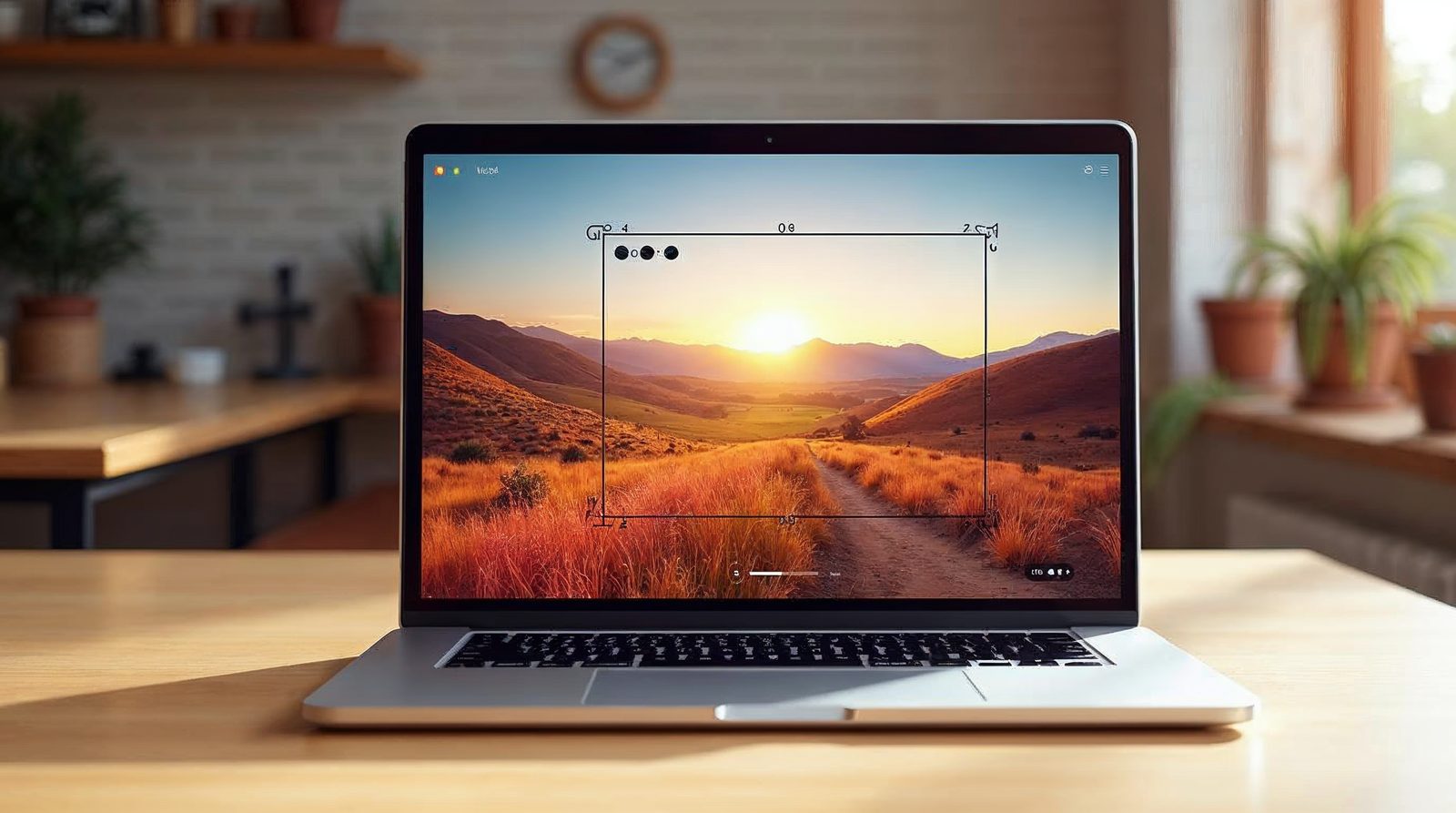
To use the image editor in WordPress, go to Media > Library, click a picture, then click Edit Image. You can crop, rotate, flip and scale it. Click Save when you finish.
When to use the built-in editor
The built-in image editor is handy for quick fixes. For the best quality, we still suggest that you resize a picture in a program like Windows Paint. Then upload it at the exact size.
Right-sized pictures keep your WordPress website fast, because small files load sooner.
Open the editor and make a change
These steps work the same on every WordPress site.
Open the library
Go to Media > Library in the dashboard. Click the picture you want to edit.
Click Edit Image
Find the Edit Image button below the picture. Click it to open the editor.
Use the buttons above the image
Rotate the picture clockwise or counterclockwise. You can also flip it, undo or redo.
Crop the picture
Drag a box over the part you want to keep. Then click the crop icon.
Scale to new dimensions
Type a new width on the right side. The height fills in on its own, so the shape stays correct. Click Scale.
Save your work
Click Save when you finish. Edited pictures stay in your library.
Crop and scale with care
Crop first, then scale. Cropping removes parts of the picture you do not need.
Scaling changes the size of the whole picture. When you fill in one dimension, the other one fills in to keep the correct shape.
A help link on the right side of the screen explains the crop tool in more detail.
Mistakes to avoid
Do not scale a small picture up. It will look blurry. Start with a large picture and scale it down.
Remember that Save changes the file in your library. If you want to keep the original, upload a copy before you edit.
Use the undo button right away if you crop the wrong part. After you click Save, you can use Restore Original on the edit screen.
Why picture size matters
A big picture slows down your page. Visitors on a phone may leave before it loads. A smaller file loads sooner, and your page feels quick.
Aim for a width that fits your page. For most blog posts, a picture about 1200 pixels wide is more than enough. Scale the picture to that width with the editor.
Check the result in your Media Library. WordPress shows the new size next to the picture, so you can see that the change worked.
Then add the picture to your post and click Preview. If it still looks too large or too small, open the editor again and make one more change.
Add alt text while you are there
The screen that holds the Edit Image button also has a box for alt text. Fill it in. Alt text describes the picture for visitors who cannot see it.
Good alt text also helps search engines. Keep it short and plain.
If you want help with your pictures or your site, call Websnoogie in Omaha at 402-813-4034, or contact us.
Common questions
Can I undo an edit after I save?
Yes. Open the picture, click Edit Image, then click Restore Original on the right side.

AboutRod and Tami Atwood
Rod and Tami Atwood and other Websnoogie contributors write the Websnoogie blog. Rod has built websites since 2004 and founded Websnoogie, LLC in Omaha in 2012. Tami is co-owner, content editor and billing expert. Call us at 402-813-4034 or write to staff@websnoogie.com.