


Categories group your posts by topic, so visitors can find what they want. You create them under Posts > Categories in your dashboard. Then you tick one or more boxes on each post before you publish.
What categories do
Think of categories as the table of contents for your blog. A bakery blog might have Bread, Cakes and Events.
Each category gets its own page that lists every post in it. Visitors click one and see all the posts on that topic.
This helps your WordPress website stay easy to use as it grows.
How to create a category
It takes about a minute. Log in at yourdomain.com/wp-admin first.
Open the Categories screen
On the left side of your dashboard, hover over Posts. A menu pops out with a Categories link. Click it.
Type a name
Enter a short name for your category, such as Recipes.
Set the slug
The slug is the part of the web address that shows the category name. It uses lowercase letters and dashes. If you leave it blank, WordPress makes one from the name.
Choose a parent if needed
Pick a parent category to make this one a child. Leave it as None for a top-level category.
Add a description
Some themes show the description on the category page. Write one or two plain sentences.
Click Add New Category
The new category appears in the list on the right.
Parent and child categories
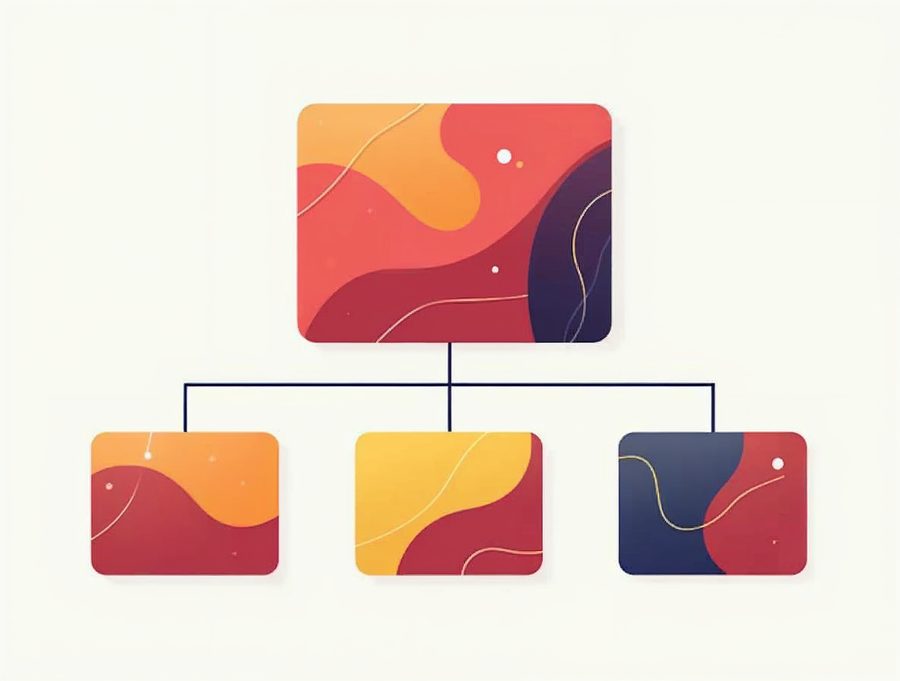
You can choose a parent category and then make child categories under it. Cakes could be a parent, with Wedding Cakes and Birthday Cakes as children.
Parent and child categories keep a large WordPress website organized. Keep the tree shallow. Two levels are enough for most sites.
Too many categories confuse visitors. If a category holds only one post, you may not need it.
Assign, edit and delete categories
You can pick categories on the right-hand side of your post page. Before you publish a post, check its category, then click Publish.
If you pick none, WordPress uses the default category, which is called Uncategorized. Many site owners forget this and end up with a long Uncategorized list. Check each post before you publish.
To change a category later, hover over it on the Categories screen and click Edit. To delete a category, hover over it and click Delete. The posts in that category move to Uncategorized, so you do not lose any posts.
Be careful when you change a slug. The web address of that category changes, and old links may stop working.
You can put one post in more than one category. Tick each box that fits. Do this only when the post truly belongs in both places.
A good habit is to plan your categories before you write. List five to eight topics you will cover. Then add them all in one sitting.
Help with your blog
If you would like help setting up your blog, call our Omaha web design team at 402-813-4034. You can also fill out the contact form.
Common questions
What happens to posts when I delete a category?
They move to the Uncategorized category. WordPress does not delete the posts.

AboutRod and Tami Atwood
Rod and Tami Atwood and other Websnoogie contributors write the Websnoogie blog. Rod has built websites since 2004 and founded Websnoogie, LLC in Omaha in 2012. Tami is co-owner, content editor and billing expert. Call us at 402-813-4034 or write to staff@websnoogie.com.